via DDay.it, news, articoli, guide, gallery e video http://ift.tt/2dm6Yvh
sabato 1 ottobre 2016
Tutti pronti alla fusione Android - Chrome OS? Il 4 ottobre si avvicina
via DDay.it, news, articoli, guide, gallery e video http://ift.tt/2dm6Yvh
Tutto pronto per il lancio di Facebook At Work
via DDay.it, news, articoli, guide, gallery e video http://ift.tt/2drHIn7
venerdì 23 settembre 2016
domenica 18 settembre 2016
mercoledì 14 settembre 2016
giovedì 8 settembre 2016
mercoledì 31 agosto 2016
martedì 30 agosto 2016
Find out if Windows 10 is limiting your Internet speed
If you noticed an Internet speed drop after upgrading to the latest version of Windows 10, the following troubleshooting guide may help resolve it.
It may be particularly useful if the Internet speed was fine on previous versions of Windows, and is no longer after the upgrade to Windows 10 Anniversary Update edition.
Microsoft introduced a feature called Window Auto-Tuning back in Windows Vista, and has made it part of any newer version of Windows as well.
Set to on by default, it is designed to improve performance for programs that receive TCP data over a network.
While data transfers should be more efficient as a general rule, users may experience slower than usual data transfer speeds under certain conditions or even connectivity issues.

The first thing you may want to do is check the status of Window Auto-Tuning. If it is turned off for instance, it is likely that it is not the case for the slow downs, but if it is set, it may very well be the culprit.
Note: you don't need administrative privileges for running the command above, but you will need them for modifying the Window Auto-Tuning parameter.
You may want to disable the feature to run connection tests and see if it is the cause for the limited Internet speed that you are getting out of the connection.
Run the following command to disable Window Auto-Tuning on Windows 10:

Once disabled, start downloads just like before and monitor the speeds that you get. You may want to fire up a P2P client, Usenet program, FTP client or server program to find out if disabling Auto-Tuning Level did resolve the issue.
If it did not, you may want to turn it on again. This is done by running the following command:
If you want to know more about Window Auto-Tuning, check out the excellent analysis of the feature here.
Ghacks needs you. You can find out how to support us here or support the site directly by becoming a Patreon. Thank you for being a Ghacks reader.
The post Find out if Windows 10 is limiting your Internet speed appeared first on gHacks Technology News.
via gHacks technology news http://ift.tt/2aApdh1
It may be particularly useful if the Internet speed was fine on previous versions of Windows, and is no longer after the upgrade to Windows 10 Anniversary Update edition.
Microsoft introduced a feature called Window Auto-Tuning back in Windows Vista, and has made it part of any newer version of Windows as well.
Set to on by default, it is designed to improve performance for programs that receive TCP data over a network.
While data transfers should be more efficient as a general rule, users may experience slower than usual data transfer speeds under certain conditions or even connectivity issues.
Managing Window Auto-Tuning in Windows 10
The first thing you may want to do is check the status of Window Auto-Tuning. If it is turned off for instance, it is likely that it is not the case for the slow downs, but if it is set, it may very well be the culprit.
Note: you don't need administrative privileges for running the command above, but you will need them for modifying the Window Auto-Tuning parameter.
- Tap on the Windows-key, type cmd.exe, hold down Shift and Ctrl keys, and hit enter.
- Confirm the UAC prompt that opens.
- Run the command netsh interface tcp show global.
You may want to disable the feature to run connection tests and see if it is the cause for the limited Internet speed that you are getting out of the connection.
Run the following command to disable Window Auto-Tuning on Windows 10:
- netsh int tcp set global autotuninglevel=disabled
Once disabled, start downloads just like before and monitor the speeds that you get. You may want to fire up a P2P client, Usenet program, FTP client or server program to find out if disabling Auto-Tuning Level did resolve the issue.
If it did not, you may want to turn it on again. This is done by running the following command:
- netsh int tcp set global autotuninglevel=normal
If you want to know more about Window Auto-Tuning, check out the excellent analysis of the feature here.
Ghacks needs you. You can find out how to support us here or support the site directly by becoming a Patreon. Thank you for being a Ghacks reader.
The post Find out if Windows 10 is limiting your Internet speed appeared first on gHacks Technology News.
via gHacks technology news http://ift.tt/2aApdh1
StorDiag.exe: new Windows 10 Storage Diagnostic tool
StorDiag.exe is a new command line drive tool to analyze storage on devices running Windows 10 that Microsoft added silently to the Anniversary Update.
The program is a diagnostic tool that you may use to identify storage related issues. Issues that it may detect including corruption of the NTFS file system.
There is more to the program than that though. You may use it to run a an ETW trace as well, and check the logs, Registry files and event files StorDiag.exe creates when it is done with the processing.
The application runs several tools in the background for that, including CheckDisk, fsutil and fltmc.

The application can only be run from an elevated command prompt. Since it is only available in Windows 10's Anniversary Edition, instructions are only provided for this particular version of Windows.

First thing you need to do is open an elevated command prompt.

The program supports three parameters that you can run it with. You may run stordiag.exe /? first to display them on the screen.

You may run the application with all commands, or only some of them.
If you want to run them all, use the following command to do so:
stordiag.exe -collectEtw -checkFSConsistency -out c:\users\martin\desktop
Note: You need to change "martin" in the out path to the username on your system. You may also leave the -out path part. If you do, all logs are saved to a StorDiag folder on the system's temp folder. Simply copy and paste %TEMP%\StorDiag in the Explorer address bar and the location should open.
The processing takes a couple of minutes tops. It depends largely on the number of storage devices connected to the Windows 10 machine at the time.
The program will check all drives for corruption using CheckDisk, and will collect a 30 second ETW trace. It runs several tools in the background and logs their output.
You find the massive list of log files and event files in the -out directory afterwards.
CDROM.reg
ChkDsk C.txt
ChkDsk O.txt
ChkDsk P.txt
ChkDsk S.txt
ChkDsk T.txt
DiskDrive.reg
FileSystem.reg
HDC.reg
<DIR> LocaleMetaData
Microsoft-Windows-DataIntegrityScan-Admin.evtx
Microsoft-Windows-DataIntegrityScan-CrashRecovery.evtx
Microsoft-Windows-DiskDiagnostic.evtx
Microsoft-Windows-Ntfs.evtx
Microsoft-Windows-Partition.evtx
Microsoft-Windows-Storage-ATAPort.evtx
Microsoft-Windows-Storage-ClassPnp.evtx
Microsoft-Windows-Storage-Storport.evtx
Microsoft-Windows-StorageManagement-Operational.evtx
Microsoft-Windows-StorageSpaces-Driver-Diagnostic.evtx
Microsoft-Windows-StorageSpaces-Driver-Operational.evtx
Microsoft-Windows-StorageSpaces-SpaceManager-Operational.evtx
Microsoft-Windows-Volume.evtx
Microsoft-Windows-VolumeSnapshot-Driver.evtx
perflog.etl
PSLogs.txt
SCSIAdapter.reg
System.evtx
VolMgr.reg
VolSnap.reg
Volume C Corruption.txt
Volume O Corruption.txt
Volume P Corruption.txt
Volume S Corruption.txt
Volume T Corruption.txt
Volume.reg
The CheckDisk information about each drive and potential corruption are probably most useful to users of the operating system.
System administrators find lots of information in the other files that they may use to analyze storage related issues.
StorDiag.exe does not resolve any of the issues that it may report. It is up to you or the system administrator to correct those.
Ghacks needs you. You can find out how to support us here or support the site directly by becoming a Patreon. Thank you for being a Ghacks reader.
The post StorDiag.exe: new Windows 10 Storage Diagnostic tool appeared first on gHacks Technology News.
via gHacks technology news http://ift.tt/2btdYss
The program is a diagnostic tool that you may use to identify storage related issues. Issues that it may detect including corruption of the NTFS file system.
There is more to the program than that though. You may use it to run a an ETW trace as well, and check the logs, Registry files and event files StorDiag.exe creates when it is done with the processing.
The application runs several tools in the background for that, including CheckDisk, fsutil and fltmc.
Using StorDiag.exe
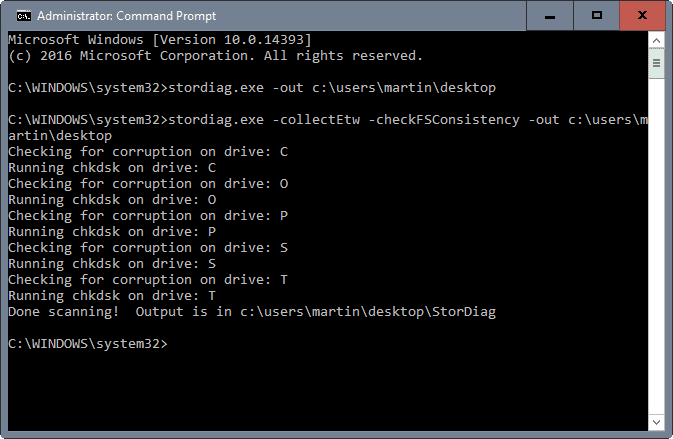
The application can only be run from an elevated command prompt. Since it is only available in Windows 10's Anniversary Edition, instructions are only provided for this particular version of Windows.
Step 1: Open an elevated command prompt
First thing you need to do is open an elevated command prompt.
- Tap on the Windows-key, type cmd.exe, hold down the Ctrl and Shift keys, and hammer on the Return key.
- Confirm the UAC prompt that is displayed afterwards.
- The elevated command prompt window should open. If it reads Administrator in the title, all is well.
Step 2: The command
The program supports three parameters that you can run it with. You may run stordiag.exe /? first to display them on the screen.
StorDiag [-collectEtw] [-out <PATH>]
-collectEtw Collect a 30-second long ETW trace if run from an elevated session
-checkFSConsistency Checks for the consistency of the NTFS file system
-out <PATH> Specify the output path. If not specified, logs are saved to %TEMP%\StorDiagStep 3: Running storage diagnostics
You may run the application with all commands, or only some of them.
If you want to run them all, use the following command to do so:
stordiag.exe -collectEtw -checkFSConsistency -out c:\users\martin\desktop
Note: You need to change "martin" in the out path to the username on your system. You may also leave the -out path part. If you do, all logs are saved to a StorDiag folder on the system's temp folder. Simply copy and paste %TEMP%\StorDiag in the Explorer address bar and the location should open.
The processing takes a couple of minutes tops. It depends largely on the number of storage devices connected to the Windows 10 machine at the time.
The program will check all drives for corruption using CheckDisk, and will collect a 30 second ETW trace. It runs several tools in the background and logs their output.
You find the massive list of log files and event files in the -out directory afterwards.
CDROM.reg
ChkDsk C.txt
ChkDsk O.txt
ChkDsk P.txt
ChkDsk S.txt
ChkDsk T.txt
DiskDrive.reg
FileSystem.reg
HDC.reg
<DIR> LocaleMetaData
Microsoft-Windows-DataIntegrityScan-Admin.evtx
Microsoft-Windows-DataIntegrityScan-CrashRecovery.evtx
Microsoft-Windows-DiskDiagnostic.evtx
Microsoft-Windows-Ntfs.evtx
Microsoft-Windows-Partition.evtx
Microsoft-Windows-Storage-ATAPort.evtx
Microsoft-Windows-Storage-ClassPnp.evtx
Microsoft-Windows-Storage-Storport.evtx
Microsoft-Windows-StorageManagement-Operational.evtx
Microsoft-Windows-StorageSpaces-Driver-Diagnostic.evtx
Microsoft-Windows-StorageSpaces-Driver-Operational.evtx
Microsoft-Windows-StorageSpaces-SpaceManager-Operational.evtx
Microsoft-Windows-Volume.evtx
Microsoft-Windows-VolumeSnapshot-Driver.evtx
perflog.etl
PSLogs.txt
SCSIAdapter.reg
System.evtx
VolMgr.reg
VolSnap.reg
Volume C Corruption.txt
Volume O Corruption.txt
Volume P Corruption.txt
Volume S Corruption.txt
Volume T Corruption.txt
Volume.reg
The CheckDisk information about each drive and potential corruption are probably most useful to users of the operating system.
System administrators find lots of information in the other files that they may use to analyze storage related issues.
StorDiag.exe does not resolve any of the issues that it may report. It is up to you or the system administrator to correct those.
Ghacks needs you. You can find out how to support us here or support the site directly by becoming a Patreon. Thank you for being a Ghacks reader.
The post StorDiag.exe: new Windows 10 Storage Diagnostic tool appeared first on gHacks Technology News.
via gHacks technology news http://ift.tt/2btdYss
OpenStreetView launches
OpenStreetView is a free crowd-sourced service by OpenStreetMap that offers street imagery that users of the service push to it while using it.
OpenStreetMap is an open source alternative to Google Maps, Bing Maps and other mapping services. The new OpenStreetView however works different than services like Google StreetView despite the naming similarities.
The service uses imagery that users of it are providing instead of capturing street views using company cars in all regions of the world.
This means that you won't get a full view of a street, but only image captures. Also, the service does not cover all areas yet which means that you may not get imagery in many areas around the world.
That's going to change though when more and more users start to use it and push recorded images while driving to OpenStreetView.

The approach has two advantages over comparable services. First, you may get multiple shots of the same area and not just one. Second, and that is related to the first, shots are taking at different dates which means that you get to see an area at different times.
Also, the data may be more up to date because of the approach. If Google or Bing want to update the data, they need to get cars to move around in the area again to do so. It happens that street view data is severely out of date because of this.
While this may also happen with OpenStreetView data, there is at least a chance that this won't happen if a driver happens to drive around in an area regularly.
You can load OpenStreetView in your browser. The map highlights all areas with street imagery in pink, so that you know where imagery is available and where it is not.
The coverage of San Francisco is particularly good already, but you will notice imagery in Europe as well already. This is limited to highways and interstates mostly though right now. You may also notice that some imagery is upside down. This is caused by users not paying attention to the position of the smartphone.
Mobile apps are provided for Android and iOS that users who want to contribute can use to create imagery and push it to OpenStreetView servers so that they become available to all users of the service.
Watch the following video that provides you with additional details about OpenStreetView
While coverage depends largely on users, OpenStreetView may come to a point eventually where its imagery is superior to competing services thanks to it being fresher.
Ghacks needs you. You can find out how to support us here or support the site directly by becoming a Patreon. Thank you for being a Ghacks reader.
The post OpenStreetView launches appeared first on gHacks Technology News.
via gHacks technology news http://ift.tt/2bbfrPT
OpenStreetMap is an open source alternative to Google Maps, Bing Maps and other mapping services. The new OpenStreetView however works different than services like Google StreetView despite the naming similarities.
The service uses imagery that users of it are providing instead of capturing street views using company cars in all regions of the world.
This means that you won't get a full view of a street, but only image captures. Also, the service does not cover all areas yet which means that you may not get imagery in many areas around the world.
That's going to change though when more and more users start to use it and push recorded images while driving to OpenStreetView.
The approach has two advantages over comparable services. First, you may get multiple shots of the same area and not just one. Second, and that is related to the first, shots are taking at different dates which means that you get to see an area at different times.
Also, the data may be more up to date because of the approach. If Google or Bing want to update the data, they need to get cars to move around in the area again to do so. It happens that street view data is severely out of date because of this.
While this may also happen with OpenStreetView data, there is at least a chance that this won't happen if a driver happens to drive around in an area regularly.
You can load OpenStreetView in your browser. The map highlights all areas with street imagery in pink, so that you know where imagery is available and where it is not.
The coverage of San Francisco is particularly good already, but you will notice imagery in Europe as well already. This is limited to highways and interstates mostly though right now. You may also notice that some imagery is upside down. This is caused by users not paying attention to the position of the smartphone.
Mobile apps are provided for Android and iOS that users who want to contribute can use to create imagery and push it to OpenStreetView servers so that they become available to all users of the service.
Watch the following video that provides you with additional details about OpenStreetView
Closing Words
OpenStreetView is an interesting service that crowd-sources street imagery. The approach is the only feasible solution for services that are not backed by companies with multi-billion Dollar budgets.While coverage depends largely on users, OpenStreetView may come to a point eventually where its imagery is superior to competing services thanks to it being fresher.
Ghacks needs you. You can find out how to support us here or support the site directly by becoming a Patreon. Thank you for being a Ghacks reader.
The post OpenStreetView launches appeared first on gHacks Technology News.
via gHacks technology news http://ift.tt/2bbfrPT
Iscriviti a:
Post (Atom)
🚀 Public APIs Collection: A Developer's Treasure Trove!
🚀 Public APIs Collection: A Developer's Treasure Trove! 📦 **Discover 100+ Free Public APIs for Your Next Project!** ⚡ Wel...
-
HopToDesk si presenta come un'ottima soluzione di desktop remoto gratuita e open source, adatta sia per uso personale che commerciale. ...
-
Browserleaks.com , un sito web che offre una serie di strumenti gratuiti per testare la sicurezza e la privacy del vostro browser. Funziona...
-
“Luna? Sì, ci siamo andati!” diventa un sito: edizione 2018 massicciamente aggiornata http://attivissimo.blogspot.com/2017/12/luna-si-ci-sia...